Day 13: VCS - Basic of Git & GitHub for DevOps
Experienced Senior DevOps Engineer with a passion for optimizing software development and delivery processes. Excels in designing and implementing CI/CD pipelines, automating infrastructure, and optimizing cloud architectures. Proficient in a wide range of DevOps tools such as Docker, Kubernetes, Jenkins, Ansible, Git, and AWS services. Strong collaborator, adept at fostering cross-functional teamwork and continuous improvement. Thrives in dynamic environments, utilizing problem-solving skills to overcome complex challenges. Dedicated to delivering high-quality software products on time and within budget.
What is Version Control? How many types of version controls do we have?
Version Control is a system that allows you to manage and track changes to files over time. It is commonly used in software development to maintain a history of code changes, enabling collaboration among developers and facilitating the process of reverting to previous versions if needed. Version control systems also help in identifying who made specific changes and when those changes were made, providing an audit trail of the project's development.
There are two main types of version control systems:
Centralized Version Control Systems (CVCS): In CVCS, the version history of the project is stored on a central server. Developers check out the latest version of the code from the central server to their local machines, make changes, and then commit those changes back to the central repository. The central server acts as the single source of truth for the project's version history.
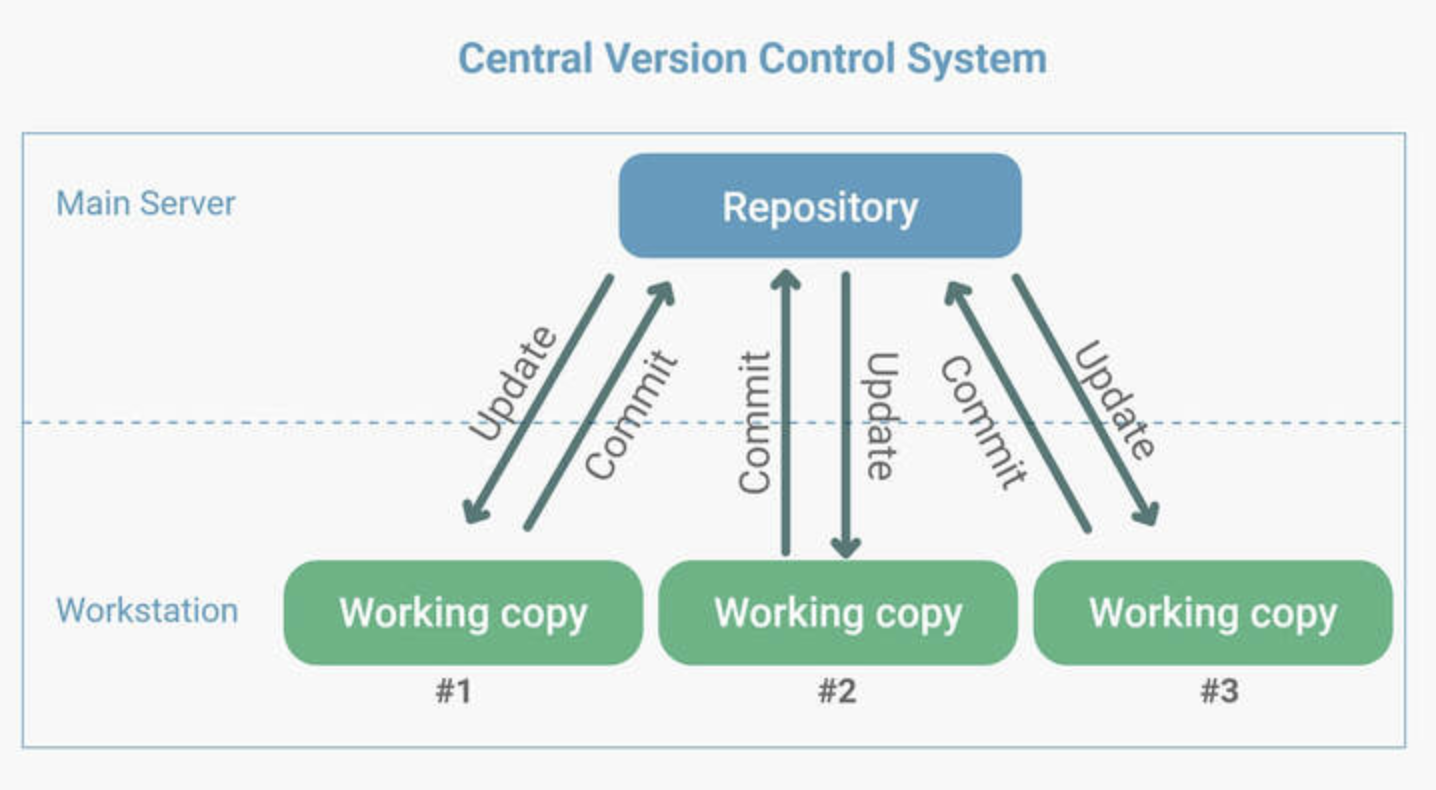
Example: Subversion (SVN) is a popular CVCS. It has been widely used in the past, but its popularity has diminished in recent years with the rise of Distributed Version Control Systems (DVCS).
Distributed Version Control Systems (DVCS): In DVCS, each developer maintains a complete local copy of the entire repository, including the full version history. This allows for more robust collaboration, offline work, and faster access to history as it doesn't require constant communication with a central server. Developers can make commits locally and share changes with others through direct repository-to-repository synchronization.
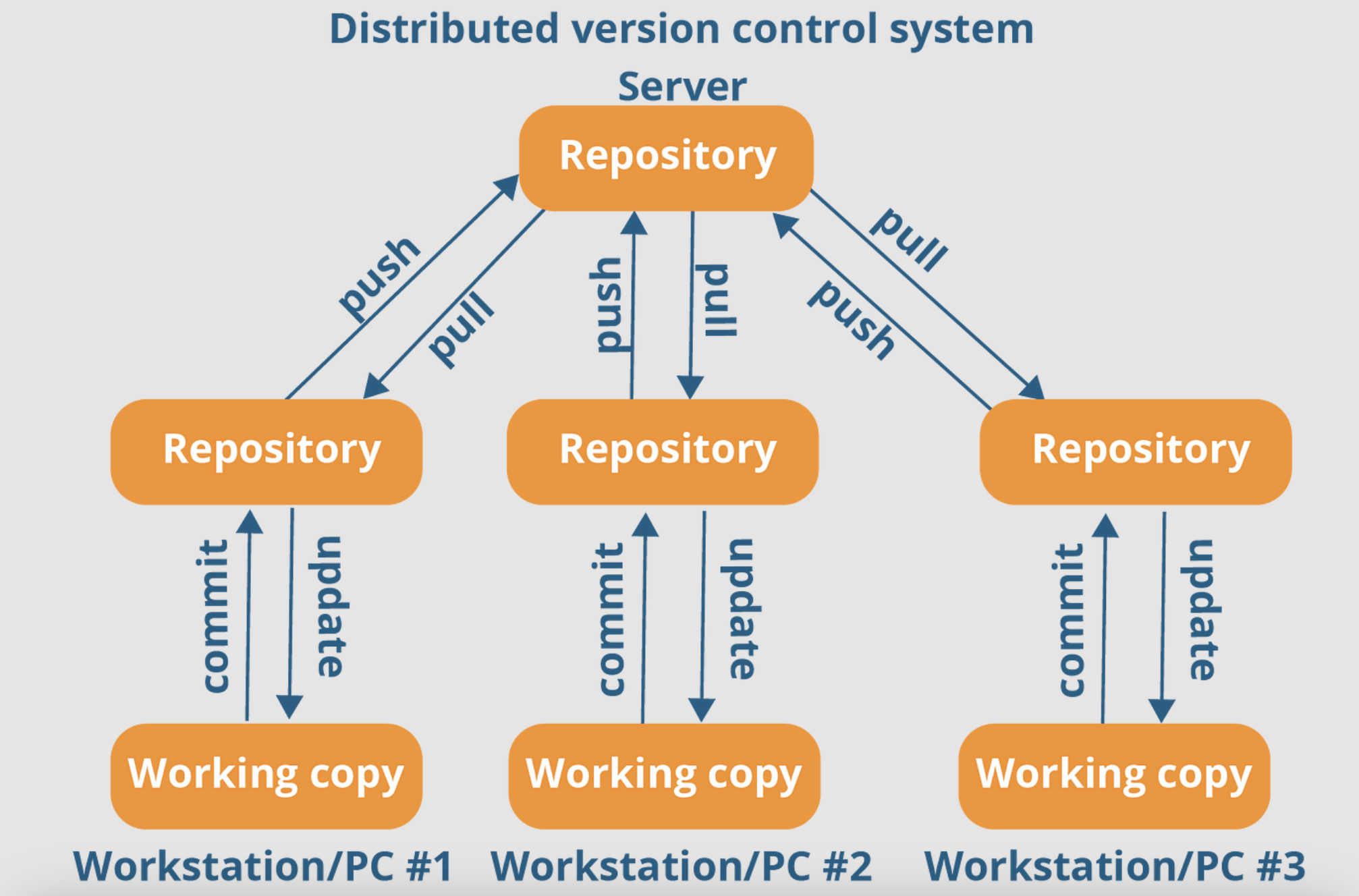
Examples:
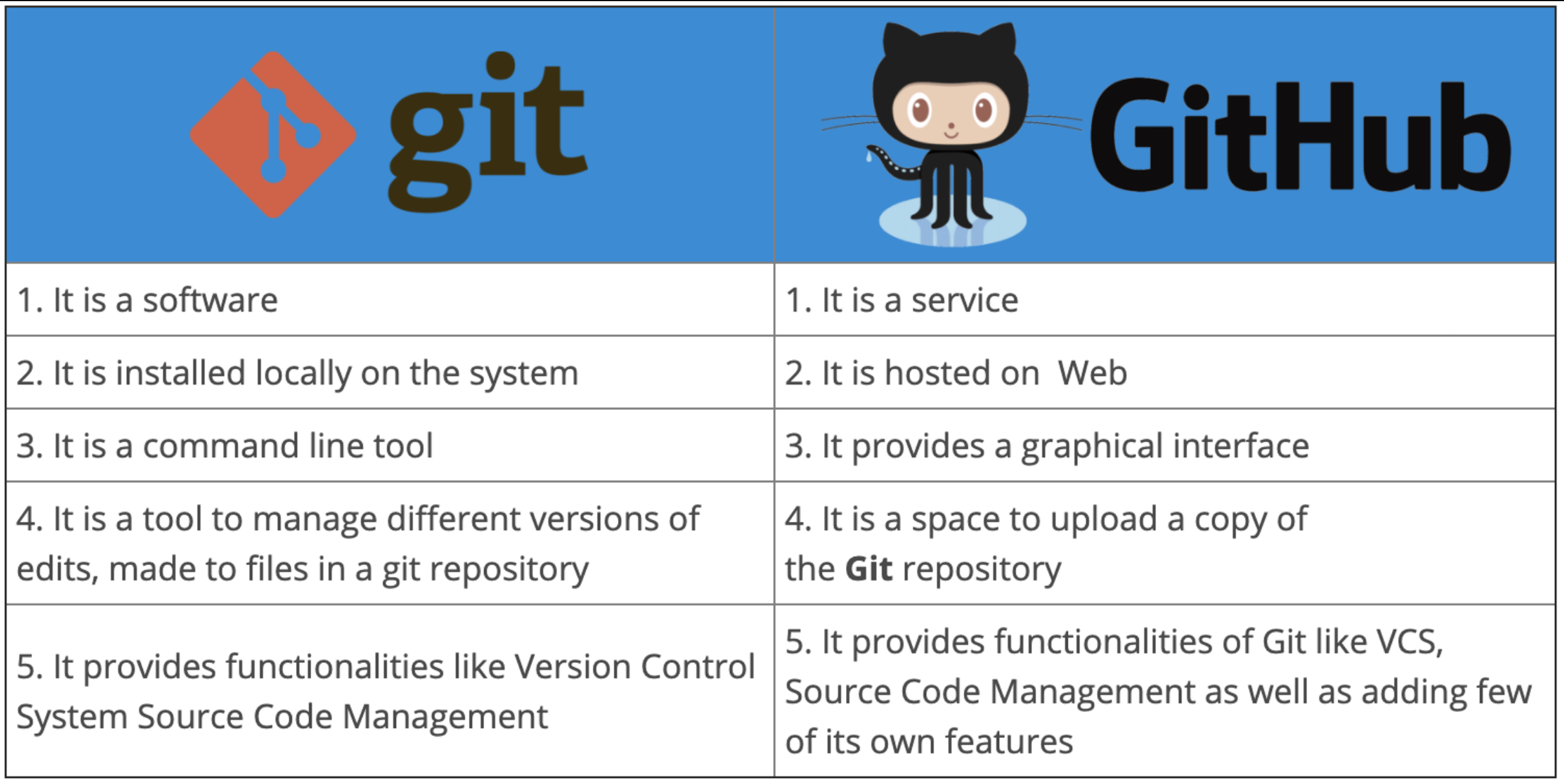
Git: Git is the most widely used DVCS, known for its speed, flexibility, and powerful branching and merging capabilities. It has become the de facto standard for version control in the software development industry. Git is used by platforms like GitHub and GitLab for hosting repositories and collaboration.
Mercurial: Mercurial is another popular DVCS, though it is less commonly used compared to Git. It offers similar features and capabilities for version control and collaboration.
Both CVCS and DVCS have their strengths and weaknesses, but DVCS, especially Git, has gained significant popularity due to its distributed nature and the advantages it offers for large-scale development and collaboration among geographically distributed teams.
Git
Git is a distributed version control system that allows you to track changes in your codebase over time. It enables multiple developers to work on the same project simultaneously, without interfering with each other's work. Here are some key concepts:
Repository (Repo): A repository is a directory that contains your project's files, as well as all the version history and metadata about the project. It's the core of version control.
Commit: A commit is a snapshot of your project at a specific point in time. It represents a set of changes made to the files in the repository.
Branch: A branch is a parallel version of the main codebase. You can create branches to work on new features or bug fixes without affecting the main code until you're ready to merge your changes.
Merge: Merging is the process of combining changes from one branch into another. It's commonly used to integrate new features into the main branch.
Pull Request (PR): A pull request is a way to propose changes to a repository. When you create a PR, others can review the changes and provide feedback before the changes are merged into the main branch.
Remote: A remote is a copy of the repository that is hosted on a server. Developers can push their local changes to the remote and pull changes from it to stay in sync with the latest version.
GitHub
GitHub is a web-based hosting service for Git repositories. It provides additional features for collaboration and project management. Here are some key features:
Repository Hosting: GitHub allows you to create public or private repositories to host your projects.
Pull Requests and Code Review: As mentioned earlier, pull requests are used for code review and collaboration. Team members can comment on the changes, suggest modifications, and ultimately approve the PR for merging.
Issues: GitHub provides an issue tracker to manage bugs, feature requests, and other tasks related to your project.
Wiki: You can create a wiki for your repository to provide documentation and additional information.
Projects: GitHub Projects enable you to manage and visualize the progress of your work using boards with cards representing tasks.
GitHub Actions: This feature allows you to automate various workflows, such as building, testing, and deploying your code.
Git Workflow
The typical Git workflow involves three main areas:
Working Directory: The Working Directory is the directory on your local machine where you have your Git repository. It contains all the files and directories related to your project. When you work on your project, you make changes to the files in this directory.
Staging Area (Index): The Staging Area, also known as the Index, is an intermediate step between the Working Directory and the Git repository. It acts as a holding area where you can carefully select which changes you want to include in your next commit. When you make changes to your files in the Working Directory, you can choose to add those changes to the Staging Area using the
git addcommand.Repository: The Git Repository is where all the committed changes are stored. It maintains a complete history of your project and all its versions. Once you are satisfied with the changes in the Staging Area, you can permanently save them to the Repository by creating a new commit using the
git commitcommand. Each commit represents a snapshot of the project at a specific point in time and includes a commit message that describes the changes made.
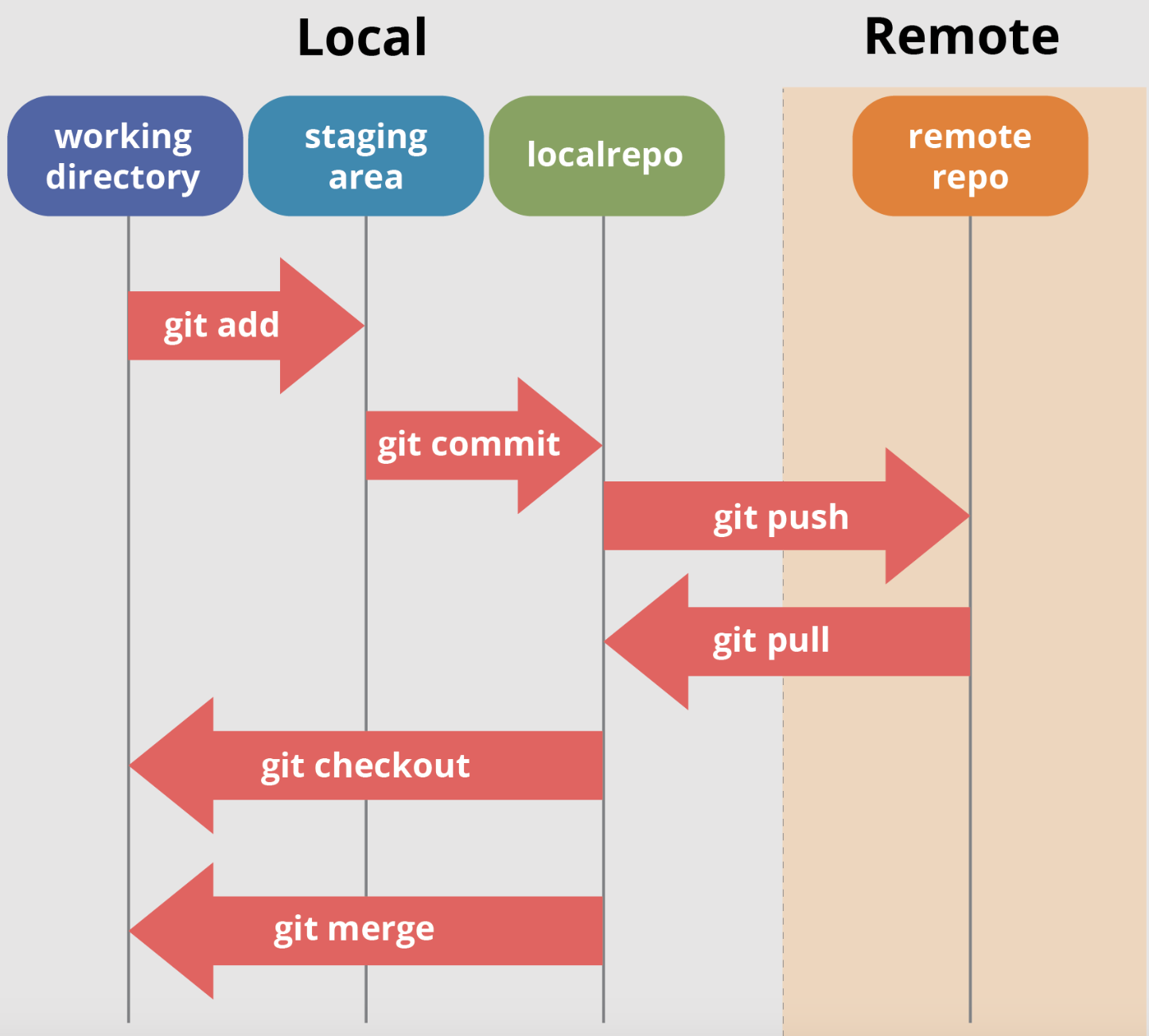
The typical Git workflow involves the following steps:
Edit Files: Make changes to the files in the Working Directory.
Stage Changes: Add specific changes you want to include in the next commit to the Staging Area using
git add.Commit Changes: Create a new commit to permanently save the changes in the Repository using
git commit -m "Your commit message".Repeat: Continue making changes, staging, and committing until you reach a significant milestone or complete a feature.
Push to Remote Repository: If you're collaborating with others or using a remote repository (e.g., on GitHub), you can use
git pushto upload your local commits to the remote repository, making them accessible to others.
Install Git on your computer (if it is not already installed). You can download it from the official website at https://git-scm.com/downloads
Create a free account on GitHub (if you don't already have one). You can sign up at https://github.com/
Follow me on https://github.com/techwithankush for more DevOps content.
Thank you for reading! :)


