Day 7: Linux - File System Permissions
Experienced Senior DevOps Engineer with a passion for optimizing software development and delivery processes. Excels in designing and implementing CI/CD pipelines, automating infrastructure, and optimizing cloud architectures. Proficient in a wide range of DevOps tools such as Docker, Kubernetes, Jenkins, Ansible, Git, and AWS services. Strong collaborator, adept at fostering cross-functional teamwork and continuous improvement. Thrives in dynamic environments, utilizing problem-solving skills to overcome complex challenges. Dedicated to delivering high-quality software products on time and within budget.
File permissions are essential for maintaining the security and access control of files and directories on Unix/Linux systems. Each file and directory has 10 bits that define its permissions. These permissions are divided into three roles: Owner, Group, and Others. Let's break down the key concepts and how to set file permissions.
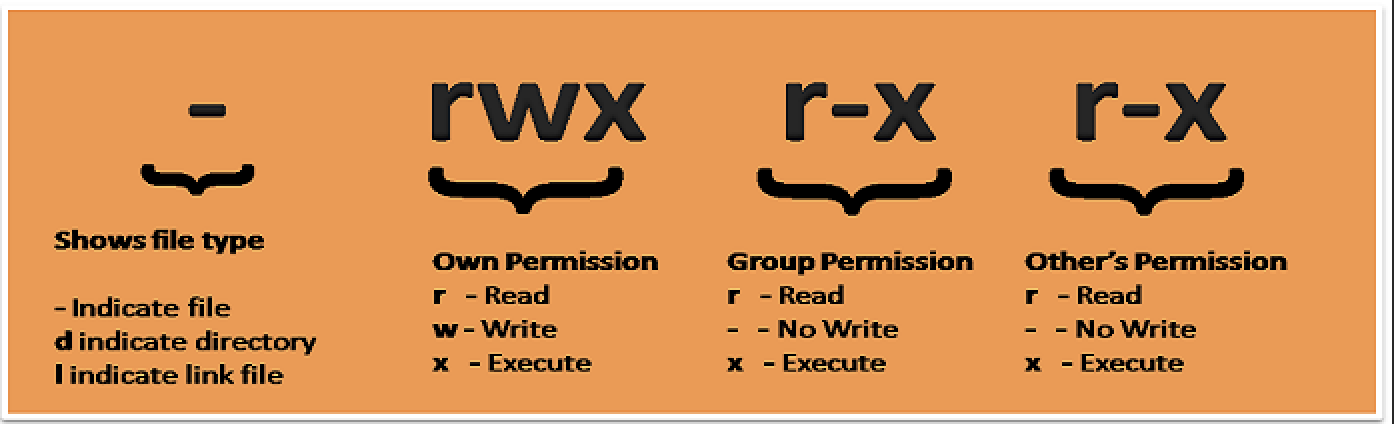
File Types and Permission Bits: When you run the
ls -lcommand in the terminal, you'll see a file's permissions displayed as a series of ten characters, with the first character indicating the file type and the next nine characters showing the permissions. The nine characters are divided into three groups of three, representing the permissions for Owner, Group, and Others, respectively.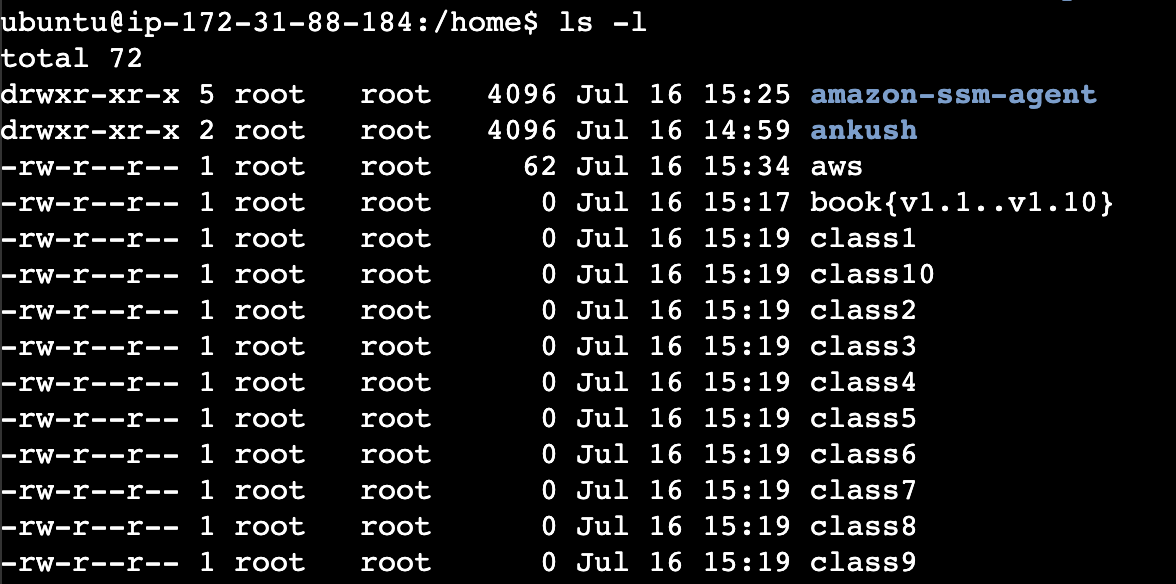
Roles:
Owner (User): The user who owns the file or directory.
Group: All the users who belong to the group associated with the file or directory.
Others: All the other users on the system who are not the Owner or part of the Group.
Permissions: Each role (Owner, Group, Others) has three types of permissions: Read, Write, and Execute.
Read (r): Allows reading/viewing the content of a file or listing files in a directory.
Write (w): Allows modifying the content of a file or creating, renaming, and deleting files in a directory.
Execute (x): Allows executing a file (like a shell script) or entering a directory and accessing files inside it.
Ways to Change File Permissions in Linux: You can use the
chmodcommand to change file permissions in two ways: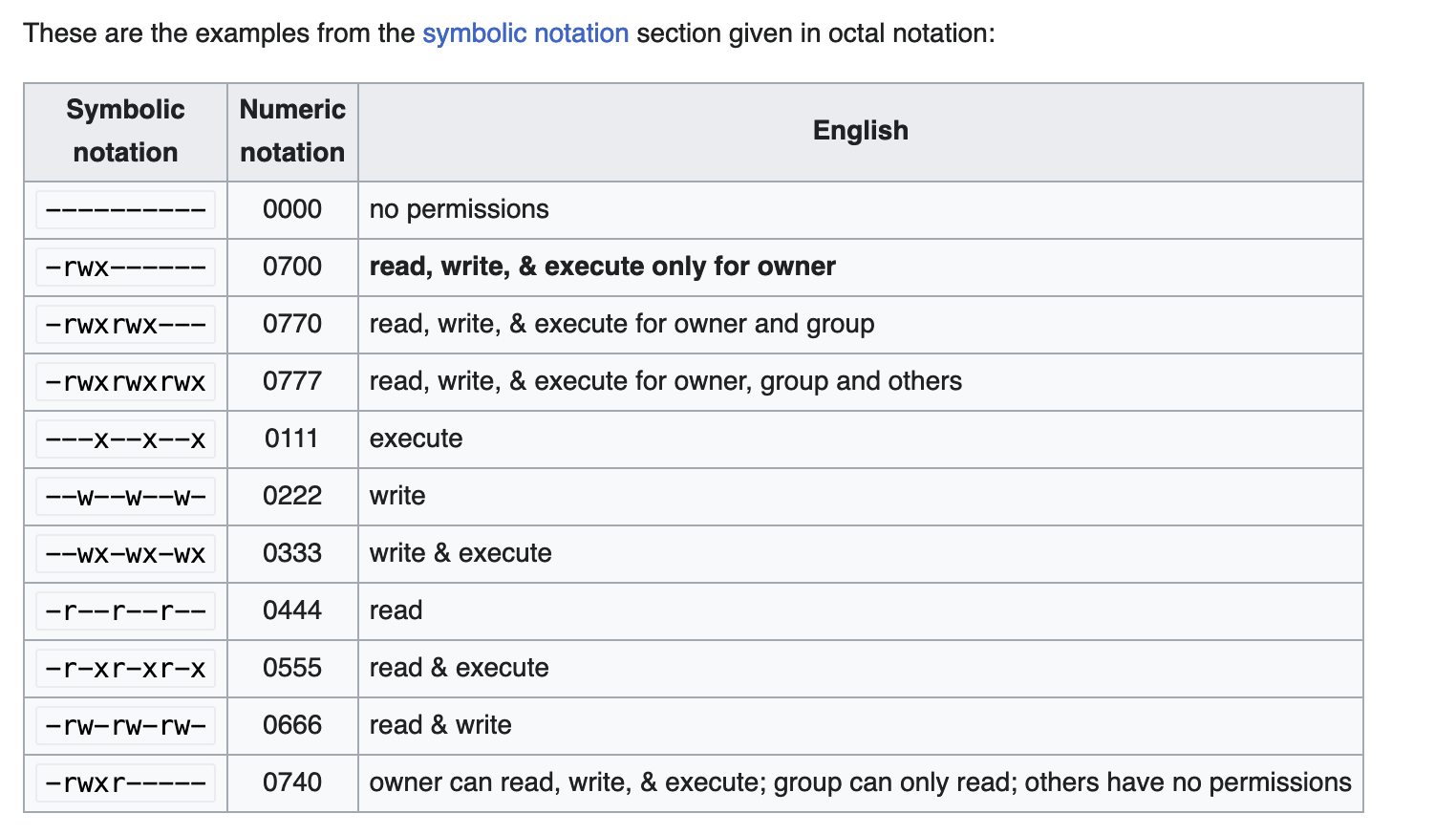
a) Symbolic Notation:
User (u): Use
uto represent the owner's permissions.Group (g): Use
gto represent the group's permissions.Others (o): Use
oto represent the permissions for others.+adds permission,-removes permission, and=sets the exact permissions.Example 1: Using Symbolic Notation Let's say we have a file named
example.txt, and we want to set the permissions to allow the owner to read, write, and execute the file, the group to read and execute it, and others only to read it.Check the current permissions of the file using
ls -l:Output:

Now, let's change the permissions using symbolic notation:

This command sets the following permissions:
Owner (user): read (r), write (w), execute (x)
Group: read (r), execute (x)
Others: read (r)
Verify the changed permissions using
ls -lagain:Output

b) Octal Notation:
Read (r): Represented by the number 4.
Write (w): Represented by the number 2.
Execute (x): Represented by the number 1.
For example:
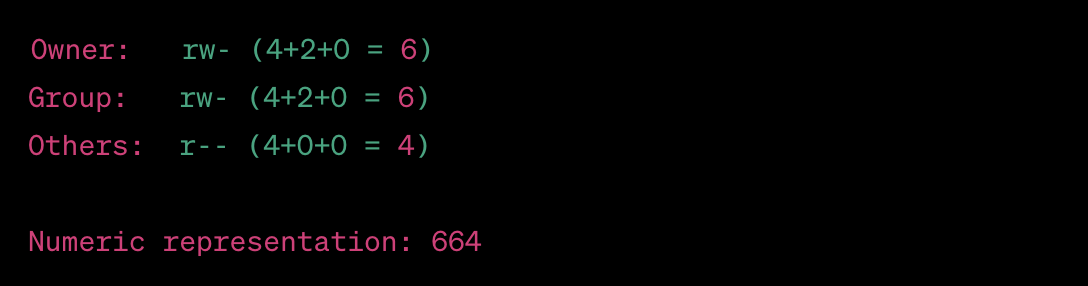
7 (rwx): Read, Write, and Execute permissions for Owner.
6 (rw-): Read and Write permissions for Group.
5 (r-x): Read and Execute permissions for Others.
4 (r--): Only Read permission for everyone.
Example 2: Using Octal Notation In this example, we'll change the permissions of the same
example.txtfile to allow the owner to read and write, the group to have no permissions, and others to have only read access.Check the current permissions of the file using
ls -lOutput :

Now, let's change the permissions using the octal notation:

Here, the octal number
644represents the following permissions:Owner (user): read (4), write (2)
Group: read (4)
Others: read (4)
Verify the changed permissions using
ls -lagainOutput :

Using these methods, you can easily manage file permissions to control who can read, write, and execute files and directories on your Linux system, thereby enhancing security and access control.
Managing File Permissions and Ownership in Linux: chmod, chown, and chgrp
1. chmod - Change File Permissions chmod is a command used in Unix/Linux systems to change the permissions of files and directories. It allows you to grant or revoke read, write, and execute permissions for the owner, group, and others.
chmod - Change File Permissions:
Grant read, write, and execute permissions to the owner of the file:
chmod u+rwx file.txtRevoke write permission from the group:
chmod g-w file.txtGrant read and execute permissions to others, while keeping owner's permissions unchanged:
chmod o+rx file.txtRemove execute permission for everyone (owner, group, others):
chmod a-x file.txt
2. chown - Change File Ownership chown is a command used to change the owner of a file or directory. Only the superuser (root) or the current owner of the file can change its ownership.
chown - Change File Ownership:
Change the owner of a file to a specific user:
chown newuser file.txtChange the owner of a directory and its contents recursively:
chown -R newuser directory/Change the owner and group of a file:
chown newuser:newgroup file.txt
3. chgrp - Change Group Ownership chgrp is a command used to change the group ownership of a file or directory. Similar to chown, only the superuser or the current owner of the file can change its group ownership.
chgrp - Change Group Ownership:
Change the group ownership of a file:
chgrp newgroup file.txtChange the group ownership of a directory and its contents recursively:
chgrp -R newgroup directory/Change both the owner and group of a file simultaneously:
chown newuser:newgroup file.txt
Remember that changing file permissions, ownership, or group ownership should be done with caution, especially with system files and directories, as it can affect system stability and security. Always ensure that you have the necessary privileges and understand the implications of your changes before using these commands.


